Actual Costs
As work is completed on the project, the actual costs incurred are typically recorded in an accounting system. For each reporting period, these actual costs incurred to do the work are imported into EVMax so they can be compared to the budget plan and work progress assessment. The cumulative to date actual costs are part of the equation to calculate the estimate at completion (EAC). Once work begins on the project, the actual costs replace the estimate to complete (ETC) values for the current reporting period. As a result, the EAC is updated every reporting period assuming you use the default calculation of EAC equals the cumulative to date actual costs plus the ETC. Comparing the budget at completion (BAC) to the EAC provides an indication whether the work will be completed under or over budget.
When needed, you can add a user defined cost code for estimated costs. Estimated costs are used in EVMax to represent the likely actual costs for material, purchased services, or purchased equipment where earned value has been claimed but invoices or billings have yet to be entered into the accounting system for the current reporting period. Estimated may be entered or imported from another system. The estimated cost values are replaced in EVMax with the recorded actual costs when they become available. Using estimated costs eliminates data validation issues where earned value is claimed and actual costs are missing.
 Implementation Tips
- Depending on the actual cost data available from your accounting system, the actual costs may be cumulative to date (through the current reporting period) or just for the current reporting period. The EVMax actual cost import process includes an option for you set this when you import the actual cost data.
- Typically the complete set of actual hours, direct cost, and indirect cost values are imported from the accounting system. There is no need to calculate results in EVMax, the only exception may be FTE values. By default, the actual costs use the budget cost code rate class. You can create a user defined rate class for the actual costs when you are importing just the base values from another system and need to calculate results in EVMax. See Rate Classes.
- For projects imported from BOEMax that used bills of material (BOMs) to create the budget data, you can also use the Resource BOM window to view the actual material quantity and unit price details. When the actual material quantity and unit price details are available, you can then calculate material price and usage variances. See Material Variances.
What do you want to do?
- If you haven't already done so for a new project, add the actual cost and forecast cost codes and set the level of detail for these values (control account or work package level). See Generate Project Cost Codes. You must be an administrative use to add these cost codes.
- Add Estimated Costs Cost Code if you intend to use estimated costs for your project. You must be an administrative user to add a cost code.
- Advance the Calendar to the next calendar reporting period end date (current time now) in the main EVMax window, Admin tab if you haven't already done so in preparation for statusing the work packages to calculate earned value. Only do this once for the current reporting period. You must be an administrative user to advance the calendar for a project.
- Import Actual Costs from the accounting system using an Excel file or you can Create an Import Template for the actual costs and Import Data Using a Template. Estimated costs can be imported the same way you import your actual costs. You must be an administrative user to import actuals costs or estimated costs.
- View the Actual Costs Spread
- View the Actual Costs BOM for projects imported from BOEMax that used BOMs to create the budget data. This applies to Material assumption type work packages assigned the Quantities earned value technique.
- Correct an error in the actual cost data for the current reporting period, Remove Current Actual Costs. Should you have any estimated costs, they are also removed. You must be an administrative user to remove the current actual costs and estimated costs.
Main EVMax Tab, Resources Tab, Actuals Tab
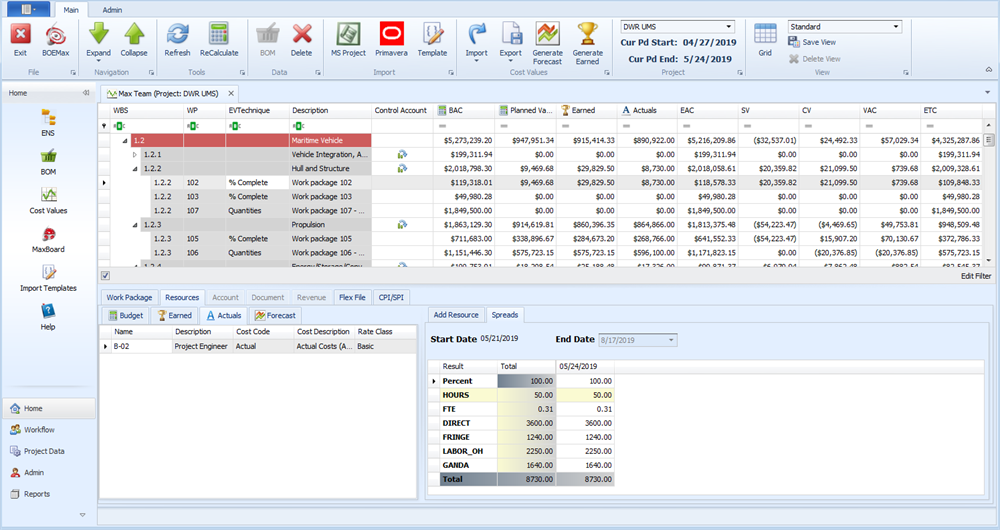
To customize your view, see Window Configuration. You may want to set which project level cost report group or results are included in the total actuals value column.